

Microsoft 365 Security
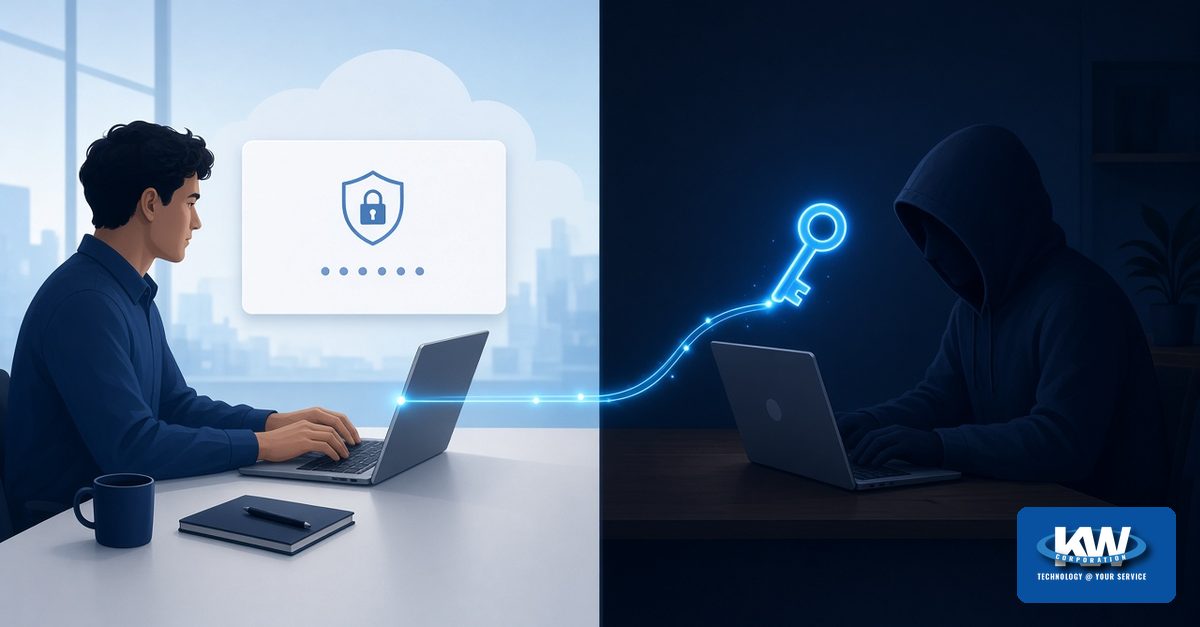
The usual advice is simple: only sign in on the real Microsoft page. A campaign reported this week shows why that is no longer enough. Here the sign-in page really is Microsoft's - and that is what makes it work.
On October 9, email security firm MailGuard described a campaign that uses fake Dropbox and DocuSign-style "secure folder" pages to walk people into a Microsoft device-code sign-in on the genuine login.microsoftonline.com page. According to MailGuard, once the victim enters the code and signs in, the attacker's application receives tokens with long-term access to email, files, contacts, SharePoint, and OneDrive - without ever stealing a password.
Never enter a sign-in code that someone else sent you - even on the real Microsoft page. For IT: block device code flow where you do not need it, and revoke sessions (not just reset the password) after a suspected compromise.
How the "secure folder" lure works
MailGuard describes a series of ordinary-looking steps:
- An email styled like a routine document or e-signature notice says a file is ready to review.
- The link passes through recognized redirect services to a fake Dropbox "shared folder" page.
- A DocuSign-style "secure document" page tells the user to copy a code, click Verify & Paste, and sign in with a Microsoft account.
- The button opens Microsoft's real page, which asks the user to enter a code to allow access.
As MailGuard puts it, the user believes they are performing an extra security step. They are actually approving the attacker's sign-in.
What device code flow is for
Device code sign-in is a legitimate Microsoft feature for devices that cannot easily show a full sign-in screen, such as smart TVs and printers. The device shows a short code; you enter it in a browser on your phone or PC and sign in. The device then receives access tokens and refresh tokens for your account.
The attack swaps the "device" for the attacker. They request a code, pass it to you inside a convincing lure, and wait. By default the code is good for 15 minutes. When you sign in - including completing your MFA prompt - the tokens go to the attacker. Microsoft's own guidance calls device code flow "a high-risk authentication method that can be part of a phishing attack."
How this differs from other Microsoft 365 phishing
In the adversary-in-the-middle attacks we covered earlier, the victim signs in on a fake look-alike page that steals the session. Here there is no fake sign-in page: the victim signs in on Microsoft's real page and approves a code the attacker generated. Our remote-support tool post touched on device codes as one path among several; this one focuses on the tokens and how to remove them.
MFA is still essential: a May 2023 Microsoft Research study of commercial Azure AD (now Entra ID) accounts found it reduced the risk of compromise by 99.22% overall and 98.56% even when credentials had leaked. But MFA alone does not stop this attack, because the victim completes the MFA step themselves.
Why a password reset may not be enough
The attacker never had the password, so resetting it does not address the real problem: the tokens. Microsoft documents a default refresh token lifetime of 90 days in most scenarios, and each use issues a fresh one. Microsoft notes the attacker keeps access "so long as the tokens remain valid."
Microsoft's refresh-token documentation shows a password change or reset revokes some refresh tokens but not all of them - it depends on how the person signed in and how the reset was done. The step Microsoft documents as revoking all of a user's refresh tokens is revoking sessions: the Revoke sessions button in the Microsoft Entra admin center, or the revokeSignInSessions action in Microsoft Graph. Revocation can take a few minutes; an existing access token may work until it expires (one hour by default).
What to do
For every employee
- Never enter a sign-in code that came from an email, chat, document, or caller
- "It was the real Microsoft page" does not make it safe if you did not start the sign-in
- Be wary of "copy this code" or "Verify & Paste" steps to open a shared file
- Entered a code? Report it right away
For IT and leadership
- Block device code flow with Conditional Access where it is not needed
- Revoke sessions after any suspected compromise, not just reset the password
- Review Entra sign-in logs for device code sign-ins you do not expect
- Check for recently registered devices on affected accounts

Practical checklist
Find out who uses device code sign-in today: filter Entra sign-in logs by the Device code authentication protocol, or use report-only mode.
Create a Conditional Access policy that blocks device code flow for all users and resources, excluding break-glass accounts and documented exceptions such as specific conference room devices.
Start in report-only, confirm nothing breaks, then turn it on. Microsoft recommends getting as close as possible to a full block.
Write the response step into your incident playbook: for a suspected compromise, revoke sessions in the Entra admin center, then review sign-ins, mailbox rules, and registered devices.
Teach the team one sentence: if you did not start the sign-in, do not enter the code.
Bottom line for Mid-Michigan teams
Device-code phishing turns good advice - "only sign in on the real page" - against your staff. The fix is a small set of settings and habits: block the flow where you do not need it, know how to revoke sessions, watch the sign-in logs, and never enter a code someone sent you.
KW Corporation is part of your team. Our Managed IT practice helps Mid-Michigan and statewide organizations harden Microsoft 365 with Conditional Access, sign-in log reviews, response playbooks, and practical staff awareness.
Ready to harden Microsoft 365?
KW's Managed IT team can review your Conditional Access policies, block device code flow safely, and put a session-revocation playbook in place.
Educational commentary only. See original pages for full guidance:
MailGuard - "Secure Folder" Auth phishing scam (Oct 9, 2026) - Microsoft Learn - Authentication flows in Conditional Access - Microsoft Learn - Block authentication flows - Microsoft Learn - Device authorization grant - Microsoft Learn - revokeSignInSessions - Microsoft Learn - Revoke user access - Microsoft Learn - Refresh tokens - Microsoft Security Blog - Device code phishing (Feb 2025) - Microsoft Research - MFA effectiveness (May 2023)
Technology @ Your Service
KW Corporation - 307 W. Grand River Ave, Fowlerville, MI 48836 - 517-223-3610 - support@kw-corp.com